Premise
In this post I’ll demonstrate how to create your first PowerApps form. I’ll be using SharePoint List as its data source and display a list of items in a gallery control. But first, a little intro.
Read More »

In this post I’ll demonstrate how to create your first PowerApps form. I’ll be using SharePoint List as its data source and display a list of items in a gallery control. But first, a little intro.
Read More »
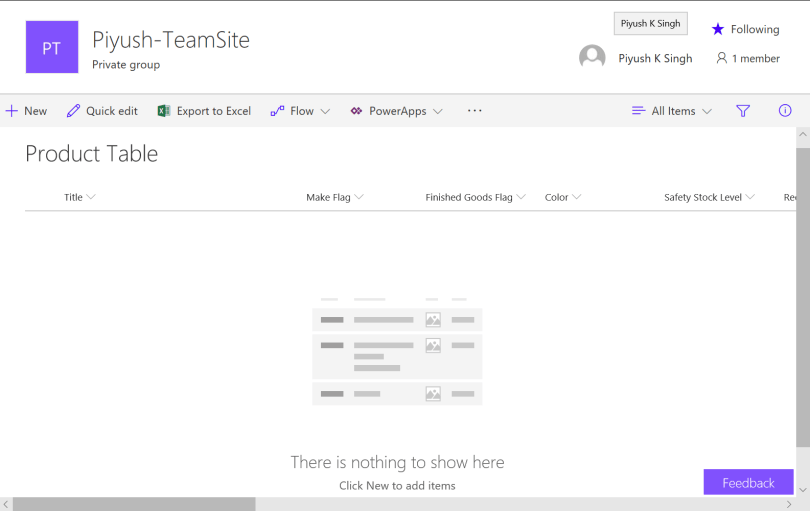
The purpose of this post is to highlight the table schema that I’ll be using henceforth, in my upcoming posts, targeting Microsoft PowerApps and Microsoft Flow. The table schema design is based on the Product Table from AdventureWorks. Here, I have highlighted all the fields used and their types. Some of the fields are custom so as to suit my case scenario.
Read More »

Just like we have SharePoint Foundation for on-premise, Microsoft issues a free 1 year developer license for SharePoint Online as well. Even better, we get a full SharePoint Online experience here unlike SharePoint Foundation where, a lot of enterprise features were blocked.
In this post, I’ll demonstrate
- how to setup your free 1 year developer account for Office 365 and then,
- how to activate full features of SharePoint Online by assigning the adequate product licenses.

Visual Studio Team Services (VSTS) is one of my favorite tool for source code management. It’s not just limited to that. It has appeal to everyone. From a large team to a small team to even a single developer!
If you’re using VSTS with Visual Studio then, you need not have to worry about this setup. VSTS is beautifully integrated with it. Visual Studio, directly, lets you sign-in to your VSTS or TFS account. However, if we have to use it outside Visual Studio, for ex, Visual Studio Code then, this authentication needs to be done manually!
For any application, which do not support Microsoft account or Azure AD authentication, VSTS needs to be authenticated by Personal Access Tokens (PAT).
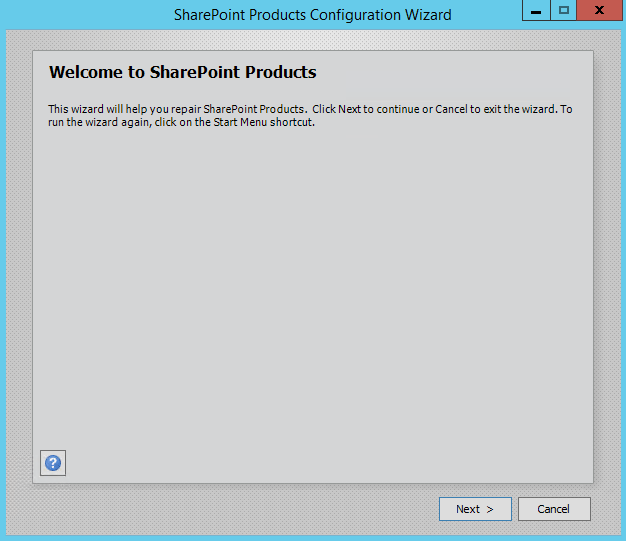
I was installing a new standalone SharePoint on my local VM. Post the installation, I started running the SharePoint Products Configuration Wizard. While running it, I received the following error,
The specified user ******* is a local account. Local accounts should only be used in stand alone mode.
 Piyush K Singh