You cannot grant a user the Limited Access permission level

This is the error message I received when trying to assign a ListItem (Word Document), Limited Access permission.

To get a grip on this, first take a look at the following table. The table illustrates a list of all the Permission Level in Windows SharePoint Services 3.0

PERMISSION LEVEL DESCRIPTION
Full Control This permission level contains all permissions. Assigned to the Site name Owners SharePoint group, by default. This permission level cannot be customized or deleted.
Design Can create lists and document libraries, edit pages and apply themes, borders, and style sheets in the Web site. Not assigned to any SharePoint group, by default.
Contribute Can add, edit, and delete items in existing lists and document libraries. Assigned to the Site name Members SharePoint group, by default.
Read Read-only access to the Web site. Users and SharePoint groups with this permission level can view items and pages, open items, and documents. Assigned to the Site name Visitors SharePoint group, by default.
Limited Access The Limited Access permission level is designed to be combined with fine-grained permissions to give users access to a specific list, document library, item, or document, without giving them access to the entire site. However, to access a list or library, for example, a user must have permission to open the parent Web site and read shared data such as the theme and navigation bars of the Web site. The Limited Access permission level cannot be customized or deleted.

NOTE You cannot assign this permission level to users or SharePoint groups. Instead, Windows SharePoint Services 3.0 automatically assigns this permission level to users and SharePoint groups when you grant them access to an object on your site that requires that they have access to a higher level object on which they do not have permissions. For example, if you grant users access to an item in a list and they do not have access to the list itself, Windows SharePoint Services 3.0 automatically grants them Limited Access on the list, and also the site, if needed.

Now, I was trying to assign, from C# code, using Client Object Model, various Roles, to a user, like,

  • Read-Only,
  • Editor,
  • Contributor,
  • Administrator, &
  • Limited Access.

As it turns out, this permission level, Limited Access, is for SharePoint’s internal use only. So basically, we don’t have to be bothered about this.

There is a complete article about this on MSDN,  http://office.microsoft.com/en-us/windows-sharepoint-services-help/permission-levels-and-permissions-HA010100149.aspx

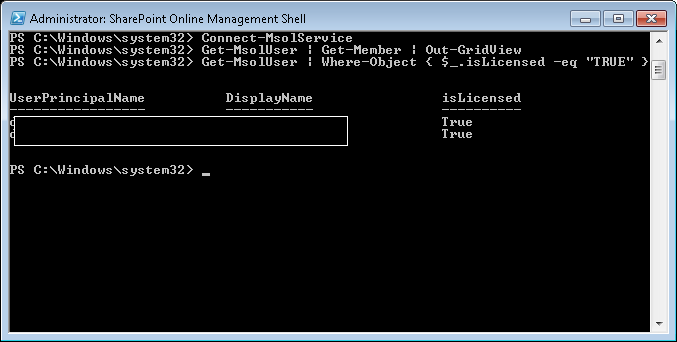
Get all Licensed Office 365 users using PowerShell

Sometimes, we might need to view all the Licensed Users within a Office365 tenant. So here, I am going to demonstrate how to get all the users for any further analysis.

But before we delve into this plz make sure that you have all the components installed on the machine to run SharePoint Online Management Shell and  the cmdlet, Connect-MsolService. You can refer this blog post also for any assistance: https://realmpksharepoint.wordpress.com/2014/07/10/install-sharepoint-online-management-shell-on-client-side/

Following are the steps involve to perform this task:

  • Open the SharePoint Online Mangement Shell in Administrator mode.
  • Type in Connect-MsolService. When the window pops up, enter your corresponding administrator credentials.
  • If no error message is thrown then your credentials are validated.
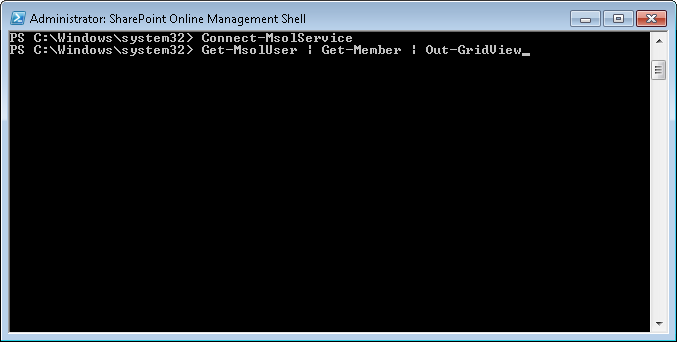
  • In case you’re interested in getting all the available properties for the user object returned by the Get-MsolUser, then type in the cmdlet,
    Get-MsolUser | Get-MsolMember | Out-GridView
    

    The following screen will be displayed.

  • As you can see that there’s a property called isLicensed, we’re now gonna use this property in our next cmdlet to get all the Licensed Office365 users only, by running the command,
    Get-MsolUser | Where-Object { $_.isLicensed -eq "TRUE" }
    

  • Finally, you can also export this information to a csv file. To do this, run this command,
    Get-MsolUser | Where-Object { $_.isLicensed -eq "TRUE" } | Select-Object UserPrincipalName, DisplayName, Country, Department, ValidationStatus | Export-Csv c:\LicensedUsers\LicensedUsers.csv
    

  • You can also view all the properties by running the command,
    Get-MsolUser | Where-Object { $_.isLicensed -eq "TRUE" } | Export-Csv c:\LicensedUsers\LicensedUsers.csv
    

The last 2 commands will not generate any message on the shell, but you can check the file at your given location.

Thanks…

Add a reference of the Microsoft.Online.Administration.Automation.PSModule dll to your Project in Visual Studio

First of all make sure that all the required items are already installed on your machine. You can view the requirements here, https://realmpksharepoint.wordpress.com/2014/07/10/install-sharepoint-online-management-shell-on-client-side/. The Microsoft.Online.Administration.Automation.PSModule dll is required to execute the
Connect-MsolService

command and get the return values in the form of type, Microsoft.Online.Administration.User from within the .net C# code. Well, it’s supposed to be a simple job of adding a reference of this dll to your project. The problem is to identify the location of this dll.

Initially, I did some googling to download the dll. However, I couldn’t find any trusted source (Microsoft) from where I can download this dll. Then, I realized that this dll should have been downloaded with the installation of Windows Azure Active Directory Module. Hence, I navigated to that location I found the dll at the following location

C:\Windows\System32\WindowsPowerShell\v1.0\Modules\MSOnline

Unfortunately, the job’s not done yet. A strange thing started happening here. Though, I can view this dll in my Explorer. The folder, MSOnline was inaccessible from the Visual Studio Add Reference window!

Still, I am not aware of this weird behavior. What I did to resolve this issue is, I copied the entire MSOnline folder to the bin directory of the project and from there I was able to add the dll’s reference to the project.

Install SharePoint Online Management Shell on Client-Side

This particular job caused quite a bit of trouble. Though, the objective was just to download and install the SharePoint Online Management Shell, the issues arose due to various dependencies. I have tried to list down the various steps involved in this operation below

System Requirements:

    • Supported Operating System.
      • Windows 7 Service Pack 1,
      • Windows 8,
      • Windows Server 2008 R2 SP1,
      • Windows Server 2008 Service Pack 2,
      • Windows Server 2012
  • PowerShell 3.0

Update PowerShell from 2.0 to 3.0

If you’re running the PowerShell version < 3.0 then you need to update it to 3.0.  You can check the version of the PowerShell by running the following command in the shell.

$PSVersionTable.PSVersion

The ScreenShot above displays a PowerShell of version 3.0. You may get version 2.0 or if you can also get an error message stating, that the variable does not exist then, it is safe to assume that the engine is version 1.0. If your engine is 3.0 or higher you can skip this segment.

Next, download the latest Windows Update from the url, http://www.microsoft.com/en-us/download/details.aspx?id=34595 and install it.

Install Instructions:
To install Windows Management Framework 3.0:
1.    Download the correct package for your operating system and architecture.

  • Windows 7 Service Pack 1
  • 64-bit versions: Windows6.1-KB2506143-x64.msu
  • 32-bit versions: Windows6.1-KB2506143-x86.msu
  • Windows Server 2008 R2 SP1
  • 64-bit versions: Windows6.1-KB2506143-x64.msu
  • Windows Server 2008 Service Pack 2
  • 64-bit versions: Windows6.0-KB2506146-x64.msu
  • 32-bit versions: Windows6.0-KB2506146-x86.msu

2.    Close all Windows PowerShell windows.
3.    Uninstall any other versions of Windows Management Framework 3.0.
4.    Run the MSU file that you downloaded.
For information about troubleshooting the installation, see the Release Notes.

To uninstall Windows Management Framework 3.0:
5.    In Control Panel/Programs/Uninstall a program/View installed updates, locate and uninstall the following installed Windows Update:

  • KB2506143 – for Windows 7 SP1 and Windows Server 2008 R2 SP1
  • KB2506146 – for Windows Server 2008 SP2

SharePoint Online Management Shell

Download and install SharePoint Online Management Shell from the url, http://www.microsoft.com/en-us/download/details.aspx?id=35588 

Run the Shell

Open the SharePoint Online Management Shell

And type the command Connect-MsolService and press enter. If everything is fine then, you’ll be shown the following screen

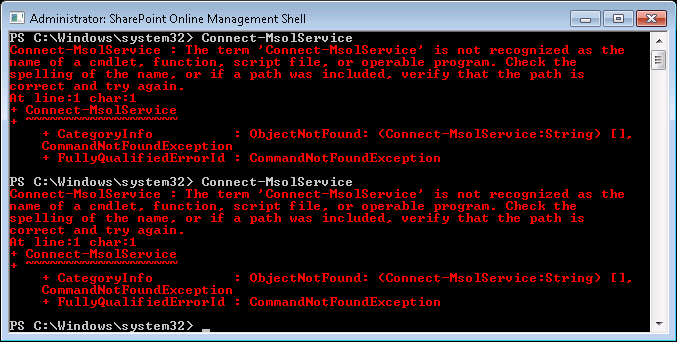
Otherwise, the following error message will be displayed!

Fix the Issue to run Connect-MsolService, PowerShell command

If you can run the command, Connect-MsolService, then everything is fine and you can skip this step and run your commands successfully.

To successfully run the Connect-MsolService PowerShell command, you need to:
1.    Find out what bitness your operating system is (x86 / 32-bit OR x64 / 64-bit). See Microsoft’s “Is my PC running the 32-bit or 64-bit version of Windows?” article for help.
2.    If necessary, install the appropriate bitness version of PowerShell 3.0 (which I hope we just did already)
Note 1: Windows6.0 is Windows Vista and Windows6.1 is Windows 7
Note 2: If you get a message of “The update is not applicable to your computer.” during the install then either you downloaded the wrong version of you already have it installed
3.    Install the appropriate bitness version of the Microsoft Online Services Sign-In Assistant for IT Professionals
4.    Install the appropriate bitness version of the Windows Azure Active Directory Module for Windows PowerShell
Note: If you get an error of  “In order to install Windows Azure Active Directory Module for Windows PowerShell, you must have Microsoft Online Services Sign-In Assistant version 7.0 or greater installed on this computer.” and a resulting failed install, install the Microsoft Online Services Sign-In Assistant for IT Professionals BETA (you shouldn’t need to uninstall the normal version but I would recommend it).
5.    Run the appropriate bitness version of PowerShell
6.    Run the Import-Module MSOnline PowerShell command
7.    Finally, run the Connect-MsolService PowerShell command

You should now be able to see the login screen.
 

Finally, it’s done!!

[Edit]
It has been noted that on some machines, even though the command runs successfully directly from the PowerShell, the same cmdlet throws the “cmdlet not supported” error when trying to execute it from within a C# application. To tackle it:

Copy the folders called MSOnline and MSOnline Extended from
C:\Windows\System32\WindowsPowerShell\v1.0\Modules\ 

to the folder
C:\Windows\SysWOW64\WindowsPowerShell\v1.0\Modules\

And then in PS run the Import-Module MSOnline, and it will automatically get the modules.

Update Exclusive properties[AllowMultiResponses & ShowUser] of a Survey List for SharePoint using service and CSOM C#

Survey List for SharePoint is like any other List except that its got some exclusive properties:

  • ShowUser – Indicates whether to display the user’s name along side its response. Default value is True.
  • AllowMultiResponses – Indicates whether an user can post multiple response for a Survey. Default value is False.

Now usually to update other common properties of a List, like Title, etc., we can easily rely on CSOM. However, there’s no such provision for these two properties or any other exclusive properties of any other List. Here, we’ll be focussing on the Survey List only.So when the Client Object Model fails, turn to services. The service Lists.asmx, comprises of many methods related to Lists. One of the method is UpdateList. This method has the following definition:

[SoapDocumentMethodAttribute("http://schemas.microsoft.com/sharepoint/soap/UpdateList", RequestNamespace="http://schemas.microsoft.com/sharepoint/soap/", ResponseNamespace="http://schemas.microsoft.com/sharepoint/soap/", Use=SoapBindingUse.Literal, ParameterStyle=SoapParameterStyle.Wrapped)] 
public XmlNode UpdateList (
    string listName,
    XmlNode listProperties,
    XmlNode newFields,
    XmlNode updateFields,
    XmlNode deleteFields,
    string listVersion
)

The XmlNode parameter listProperties, is the one I’ll be focusing at. This will be in the format of a

XmlNode where we can update/modify the following properties:
AllowMultiResponses TRUE to allow multiple responses to the survey.
Description A string that contains the description for the list.
Direction A string that contains LTR if the reading order is left-to-right, RTL if it is right-to-left, or None.
EnableAssignedToEmail TRUE to enable assigned-to e-mail for the issues list.
EnableAttachments TRUE to enable attachments to items in the list. Does not apply to document libraries.
EnableModeration TRUE to enable Content Approval for the list.
EnableVersioning TRUE to enable versioning for the list.
Hidden TRUE to hide the list so that it does not appear on the Documents and Lists page, Quick Launch bar, Modify Site Content page, or Add Column page as an option for lookup fields.
MultipleDataList TRUE to specify that the list in a Meeting Workspace site contains data for multiple meeting instances within the site.
Ordered TRUE to specify that the option to allow users to reorder items in the list is available on the Edit View page for the list.
ShowUser TRUE to specify that names of users are shown in the results of the survey.
Title A string that contains the title of the list.

As you can see the two exclusive properties of the List Survey, ShowUser & AllowMultiResponses are present here which is exactly what we need. The other properties can also be updated using the CSOM so I won’t be using them here.

One important thing, this method simultaneously, also creates, updates, & deletes Fields/SiteColumns for the given List. However, if you don’t want to use them (as will be the case here) you can pass an empty string as parameters.

Following is the code sample to accomplish this task. The first part demonstrates how to construct the parameter, listProperties.

Desired Format
<List Title=”List_Name” Description=”List_Description” Direction=”LTR”/>

XmlDocument xmlDoc = new System.Xml.XmlDocument();
XmlNode ndProperties = xmlDoc.CreateNode(XmlNodeType.Element, "List", "");
XmlAttribute ndTitleAttrib = (XmlAttribute)xmlDoc.CreateNode(XmlNodeType.Attribute, "Title", "");
XmlAttribute ndDescriptionAttrib = (XmlAttribute)xmlDoc.CreateNode(XmlNodeType.Attribute, "Description", "");
XmlAttribute ndDirectionAttrib = (XmlAttribute)xmlDoc.CreateNode(XmlNodeType.Attribute, "Direction", "");
XmlAttribute ndMultiresponse = (XmlAttribute)xmlDoc.CreateNode(XmlNodeType.Attribute, "AllowMultiResponses", "");
XmlAttribute ndShowUser = (XmlAttribute)xmlDoc.CreateNode(XmlNodeType.Attribute, "ShowUser", "");

ndTitleAttrib.Value = "My Survey";
ndDescriptionAttrib.Value = "Allowing multiple responses for this Survey";
ndDirectionAttrib.Value = "LTR";
ndMultiresponse.Value = "TRUE";
ndShowUser.Value = "TRUE";

ndProperties.Attributes.Append(ndTitleAttrib);
ndProperties.Attributes.Append(ndDescriptionAttrib);
ndProperties.Attributes.Append(ndDirectionAttrib);
ndProperties.Attributes.Append(ndMultiresponse);
ndProperties.Attributes.Append(ndShowUser);

So basically we're creating the following node

<
List Title="My Survey" Description="Allowing multiple responses for this Survey" Direction="LTR" AllowMultiResponses="TRUE" ShowUser="TRUE"/>

Finally, we’re going to use this parameter in the UpdateList method. The following code is a sample demonstration to call this method from the Lists.asmx service. Note that since this service is dependant on the site’s url, it will always vary from site to site. Hence we’re setting the url of the web service at runtime. One more thing, all the parameters that will be passed should be string i.e., the OuterXml property for XmlNode parameters.

string webServiceUrl = ctx.Web.Url + "/_vti_bin/Lists.asmx";

StringBuilder sbEnvelope = new StringBuilder();
sbEnvelope.Append("");
sbEnvelope.Append(String.Format(
    "" +
        "" +
            "{0}" +
            "{1}" +
            "{2}" +
            "{3}" +
            "{4}" +
            "{5}" +
        "" +
    ""
    , id, ndProperties.OuterXml, String.Empty, String.Empty, String.Empty, version));
sbEnvelope.Append("");

HttpWebRequest req = (HttpWebRequest)WebRequest.Create(webServiceUrl);
req.Method = "POST";
req.ContentType = "text/xml; charset=\"utf-8\"";
req.Accept = "text/xml";
req.Headers.Add("SOAPAction", "\"http://schemas.microsoft.com/sharepoint/soap/UpdateList\"");
req.UserAgent = "FrontPage";
req.UseDefaultCredentials = false;

Uri targetSite = new Uri(ctx.Web.Url);
SharePointOnlineCredentials spCredentials = (SharePointOnlineCredentials)ctx.Credentials;
string authCookieValue = spCredentials.GetAuthenticationCookie(targetSite);
req.CookieContainer = new CookieContainer();
req.CookieContainer.Add(
    new Cookie("FedAuth",
        authCookieValue.TrimStart("SPOIDCRL=".ToCharArray()),
        String.Empty,
        targetSite.Authority));

using (IO.Stream stream = req.GetRequestStream())
{
    using (IO.StreamWriter writer = new IO.StreamWriter(stream))
    {
        writer.Write(sbEnvelope.ToString());
    }
}

WebResponse response = req.GetResponse();
using (IO.Stream responseStream = response.GetResponseStream())
{
    XmlDocument xDoc = new XmlDocument ();
    xDoc.Load(responseStream);

    if (xDoc.DocumentElement != null && xDoc.DocumentElement.InnerText.Length > 0)
    {
        Debug.WriteLine(String.Concat(DateTime.Now.ToShortTimeString(), " Response of the Survey List Update: ", xDoc.DocumentElement.InnerText));
    }
}

Here’s a screen-shot of the UpdateList method. You can view your site’s service at your site’s url + “_vti_bin/Lists.asmx”