Create a read-only user in Office365

This is the first of the 2 series blog. In this, I’ll explain how to do create a read-only Office365 User, directly from the client PowerShell. And then there’s a complete code snippet to achieve the same from a C# Console App in the 2nd part of this blog[Coming soon]. Before delving deep, I would like to highlight the fact, that you’ll NOT be charged for this User a/c by Microsoft. We’ll be barely creating a User, not assigning any license to it.

The entire process can be broadly classified into 4 major steps:

  1. Authenticate using existing administrator’s userID & password
  2. Create a new User with a randomly generated password
  3. Assign the role, “Service Support Administrator
  4. Assign the RoleGroupMember, “View-Only Organization Management” [Exchange]

PowerShell

Requirement:

SharePoint Online Management Shell with all its dependencies.

Authenticate using existing administrator’s userID & password

Open Windows PowerShell and enter the cmdlet,

"Connect-MsolService".

A dialogue will pop-up seeking the userId & password.

Provide an administrators credential here. Note, you’ll not be notified for wrong userID or password. In the event of providing wrong credential, the following cmdlets will refuse to run. So, make sure, that the credential is correct.

Create a new User with a randomly generated password

Once, the authentication is done, we’ll then create a new Office365 user. We’ll be providing basic user details, like FirstName, LastName, LoginID [or, UserPrincipal(compulsory)]. But, we’ll never set the password. The password will be returned back to us, once the user has been created. Another important thing to note here is the password policy we’re enforcing here. First, we’re setting, “ForceChangePassword” to false. This implies that when the User will login for the very first time, he/she will not be prompted to change it. Next, we’re setting “PasswordNeverExpires“, to true which, is pretty much self-explanatory.

New-MSolUser -DisplayName “PK” -UserPrincipalName “pk@company.onmicrosoft.com” -FirstName “Piyush” -LastName “Singh” -ForceChangePassword $false -PasswordNeverExpires $true

Once the User has been created, its basic details like, UserPrincipalName, newly created Password, etc, will be displayed in the Shell. One can also specify their preferred password also by adding, “-Password “Password123” at the end of the above cmdlet.

Note: There can be multiple Users with identical DisplayName but not UserPrincipalName. It has to be unique.
 

Assign the role, “Service Support Administrator”

This is simple. We’ll be assigning the “Service Support Administrator” role to this newly created User.

Add-MSOLRoleMember –RoleName “Service Support Administrator” –RoleMemberEmailAddress pk@company.onmicrosoft.com

Assign the RoleGroupMember, “View-Only Organization Management”

This role group is specific to Exchange. The objective is to assign only view permission to this user. To accomplish this, we’ll execute the cmdlet, “Add-RoleGroupMember“. One problem, this cmdlet is not a part of SharePoint Online Management Shell. So we cannot directly run it. We have to, first, establish a remote connection to the Exchange Server, and temporarily import it’s commands to the local PowerShell session. Only then, we can execute the cmdlet, “Add-RoleGroupMember“. Once the job’s done, we should also remove this session. To know more about this, plz visit the site, http://technet.microsoft.com/en-us/library/dd335083(v=exchg.150).aspx

Since, here, we’ll be executing a series of commands, I have put it all down in a script file. Here’s the content,

$Cred = Get-Credential
$s = New-PSSession -ConfigurationName Microsoft.Exchange -ConnectionUri https://ps.outlook.com/powershell -Credential $cred -Authentication Basic –AllowRedirection
Import-PSSession $s
$memberLoginName = Read-Host ‘LoginID’
Add-RoleGroupMember -identity ‘View-Only Organization Management’ -member $memberLoginName
Remove-PSSession $s

Say, we saved the file in D drive, with the name, addExchngViewRole.ps1. So to execute the same, just run from powershell, D:/addExchngViewRole.ps1. A dialog box will be prompted (same as above). Here again, you need to specify the admin’s credential. Once validated, it will import the Exchange commands.
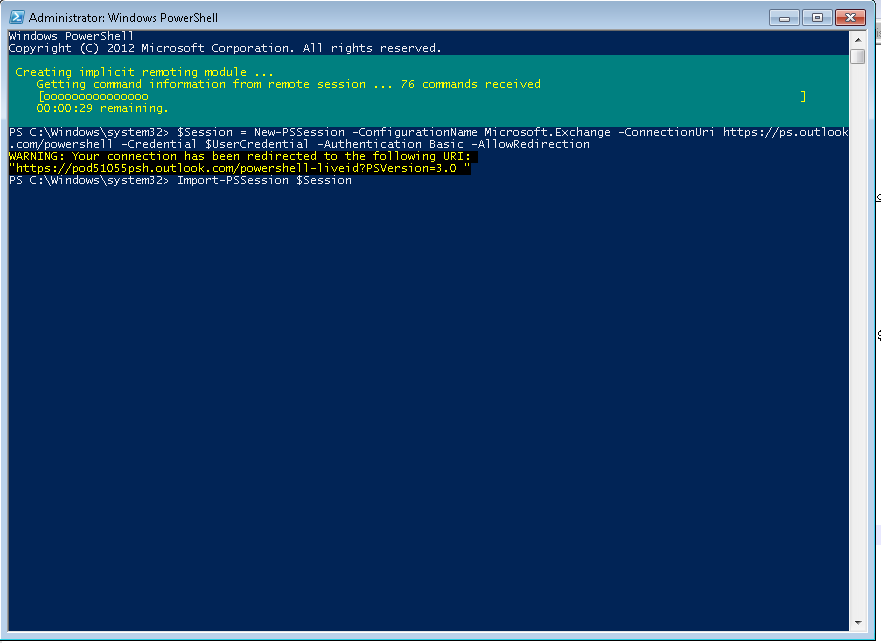
Next, you’ll be asked to provide the PrincipalID or LoginName of the User who will be assigned to the RoleGroup, View-Only Organization Management [in this case, pk@company.onmicrosoft.com]. After that the user will be added to the given group and the current session will be removed from your machine, as per Microsoft’s guideline.

Note: ConnectionUri has been fixed to https://ps.outlook.com/powershell. This is valid for Exchange Online only. If you’re using on-premise, plz replace the url with this one, http:///PowerShell/.

Sideloading of apps is not enabled on this site

SideLoading of apps is disabled by default on SharePoint sites. So in order to publish our app directly from visual studio, we need to enable this option. However, do remember that Sideloading apps is a developer/test feature not intended for production use.Before proceeding further please make sure that you have already installed the Sharepoint Online Management Shell. Next follow the steps described below:-

Enable SideLoading

* Save the following code to your machine as “EnableSideLoading.ps1“.


$programFiles = [environment]::getfolderpath("programfiles")

add-type -Path $programFiles'\SharePoint Online Management Shell\' + `
  'Microsoft.Online.SharePoint.PowerShell\Microsoft.SharePoint.Client.dll'

Write-Host `
  'To enable SharePoint app sideLoading, ' + `
  'enter Site Url, username and password'
 
$siteurl = Read-Host 'Site Url'
$username = Read-Host "User Name"
$password = Read-Host -AsSecureString 'Password'
 
if ($siteurl -eq '') {
    $siteurl = 'https://mytenant.sharepoint.com/sites/mysite'
    $username = 'me@mytenant.onmicrosoft.com'
    $password = ConvertTo-SecureString -String 'mypassword!'`
                -AsPlainText -Force
}
$outfilepath = $siteurl -replace ':', '_' -replace '/', '_'
 
try
{
    [Microsoft.SharePoint.Client.ClientContext]$cc = `
      New-Object Microsoft.SharePoint.Client.ClientContext($siteurl)
 
    [Microsoft.SharePoint.Client.SharePointOnlineCredentials]$spocreds = `
      New-Object `
      Microsoft.SharePoint.Client.SharePointOnlineCredentials($username, $password)
 
    $cc.Credentials = $spocreds
    $sideLoadingEnabled = `
    [Microsoft.SharePoint.Client.appcatalog]::IsAppSideloadingEnabled($cc);
    
    $cc.ExecuteQuery()
    
    if($sideLoadingEnabled.value -eq $false) {
        Write-Host -ForegroundColor Yellow `
          'SideLoading feature is not enabled on the site:' $siteurl
        $site = $cc.Site;
            $sideLoadingGuid = `
           new-object System.Guid "AE3A1339-61F5-4f8f-81A7-ABD2DA956A7D"
            $site.Features.Add($sideLoadingGuid, $false, `
            [Microsoft.SharePoint.Client.FeatureDefinitionScope]::None);
            $cc.ExecuteQuery();
           Write-Host -ForegroundColor Green `
          'SideLoading feature enabled on site' $siteurl
    }
    
    Else {
        Write-Host -ForegroundColor Green `
          'SideLoading feature is already enabled on site' $siteurl
    }
}
 
Catch { 
    Write-Host -ForegroundColor Red `
      'Error encountered when trying to enable SideLoading feature' `
      $siteurl, ':' $Error[0].ToString();
}
* Execute “EnableSideLoading.ps1” from PowerShell.
* Provide your Credentials.
* That’s it. You’ll now be able to install app directly from Visual Studio.

Disable SideLoading

Once your job  is done, make sure to disable this option. To do that run the following script from PowerShell just as it has been described above.

$programFiles = [environment]::getfolderpath("programfiles")

add-type -Path $programFiles'\SharePoint Online Management Shell\' + `
 Microsoft.Online.SharePoint.PowerShell\Microsoft.SharePoint.Client.dll'

Write-Host 'To disable sideLoading, enter Site Url, username and password'
 
$siteurl = Read-Host 'Site Url'
 
$username = Read-Host "User Name"
 
$password = Read-Host -AsSecureString 'Password'
 
if ($siteurl -eq '') {
    $siteurl = 'https://mytenant.sharepoint.com/sites/mysite'
    $username = 'me@mytenant.onmicrosoft.com'
    $password = ConvertTo-SecureString -String 'mypassword!' `
      -AsPlainText -Force
}
 
Try {
    [Microsoft.SharePoint.Client.ClientContext]$cc = `
    New-Object Microsoft.SharePoint.Client.ClientContext($siteurl)
 
    [Microsoft.SharePoint.Client.SharePointOnlineCredentials]$spocreds = `
    New-Object Microsoft.SharePoint.Client.SharePointOnlineCredentials($username, $password)
 
    $cc.Credentials = $spocreds
 
    $site = $cc.Site;
    
    $sideLoadingEnabled = `
    [Microsoft.SharePoint.Client.appcatalog]::IsAppSideloadingEnabled($cc);
    
    $cc.ExecuteQuery()
    
    if($sideLoadingEnabled.value -eq $false)
    {
      Write-Host -ForegroundColor Green `
        'SideLoading is alreday disabled on site' $siteurl
        }
       else
       {
      Write-Host -ForegroundColor Yellow `
        'Disabling SideLoading feature on site' $siteurl
      $sideLoadingGuid = `
        new-object System.Guid "AE3A1339-61F5-4f8f-81A7-ABD2DA956A7D"
      $site.Features.Remove($sideLoadingGuid, $true);
      $cc.ExecuteQuery();
      Write-Host -ForegroundColor Green `
        'SideLoading disabled on site' $siteurl
        }

} catch {
    Write-Host -ForegroundColor Red `
      'Error encountered when trying to disable side loading features' `
      $siteurl, ':' $Error[0].ToString();
}
 

For further details, visit the following site:
http://blogs.msdn.com/b/officeapps/archive/2013/12/10/enable-app-sideloading-in-your-non-developer-site-collection.aspx

Get Available PowerShell Commands for SharePoint on Client-Side

Needless to say, that on Client Side, we get a limited scope of running various SharePoint commands. As a result there aren’t much cmdlets for the Client Side. So how do you know what are the available commands that might come handy while executing cmdlets remotely? Simply run the following command in PowerShell or SharePoint Online Management Shell.
get-command | Where-Object { $_.ModuleName -eq "Microsoft.Online.SharePoint.PowerShell" }

A sample list of available cmdlets are displayed in the following screenShot.

Share a SharePoint File with different Office365 users using Client Object Model C#

In my previous post, Get a list of all the Shared users for a ListItem/Document of SharePoint List, I had described how to get the list of all the SharePoint users with whom a given Document Library item, has been shared. Now, in this post, I am going to Share an existing ListItem with a different SP user using CSOM.This works in the following 2 simple steps:

  1. Get the user(principal) with whom the item has to be shared.
  2. Next, get/create the RoleDefinition which will have various Permission Rights for the user.

The 2nd point is important. SP has already defined various RoleDefinitions that we can use for our purpose like, Administrator, ContentEditior, Read, etc. So we can either use any one of them or can even create our own custom RoleDefinition. I am going to demonstrate both the functionalities here.

First get the User and the ListItem which is to be shared


ClientContext ctx = new ClientContext("targetURL");
ctx.Credentials = new SharePointOnlineCredentials(userName, passWord);

ctx.Load(ctx.Web);
SP.ListCollection listCol = web.Lists;
ctx.Load(listCol);

SP.List list = listCollection.GetByTitle("ListTitle");

SP.CamlQuery camlQuery = new SP.CamlQuery();
camlQuery.ViewXml = "";

SP.ListItemCollection listItemCollection = list.GetItems(camlQuery);
ctx.Load(listItemCollection);

ctx.ExecuteQuery();

//get the user you want to share the current item
User currentUser = ctx.Web.EnsureWeb("memberLoginName")
SP.ListItem listItem = listItemCollection.FirstOrDefault(t => t.DisplayName == "WordFile");
ctx.Load(listItem,
    li => li.HasUniqueRoleAssignments,
    li => li.RoleAssignments.Include(
        p => p.Member,
        p => p.RoleDefinitionBindings.Include(
            s => s.Name)));
ctx.Load(currentUser);
            
ctx.ExecuteQuery(); 

Share with User with Existing RoleDefinition

RoleDefinitionCollection roleDefCol = ctx.Web.RoleDefinitions;

ctx.Load(roleDefCol, r => r.Include(p => p.Name));
ctx.ExecuteQuery();

RoleDefinitionBindingCollection rDefBindCol = new RoleDefinitionBindingCollection(ctx);

//Could be Edit, Read, Contribute, etc.
string roleDefName = "Edit";
RoleDefinition rDef = roleDefCol.FirstOrDefault(p => p.Name == roleDefName);

if(rDef != null)
{
    //Add the current binding to the seleted listItems RoleAssignments
    rDefBindCol.Add(rDef);
}

ctx.ExecuteQuery();

Console.WriteLine("SharePoint Role Assigned successfully.");

Share with User with new Custom RoleDefinition

Site collSite = ctx.Site;

// Set up permissions.
BasePermissions permissions = new BasePermissions();
permissions.Set(PermissionKind.ViewListItems);
permissions.Set(PermissionKind.AddListItems);
permissions.Set(PermissionKind.EditListItems);
permissions.Set(PermissionKind.DeleteListItems);

// Create a new role definition.
RoleDefinitionCreationInformation rdcInfo = new RoleDefinitionCreationInformation();
rdcInfo.Name = "Manage List Items";
rdcInfo.Description = "Allows a user to manage this list items";
rdcInfo.BasePermissions = permissions;
RoleDefinition roleDef = collSite.RootWeb.RoleDefinitions.Add(rdcInfo);

// Create a new RoleDefinitionBindingCollection object.
RoleDefinitionBindingCollection collRDB = new RoleDefinitionBindingCollection(ctx);
// Add the role to the collection.
collRDB.Add(roleDef);

// Break permissions so its permissions can be managed directly.
listItem.BreakRoleInheritance(true, false);

// Get the RoleAssignmentCollection for the target listItem.
RoleAssignmentCollection collRoleAssign = listItem.RoleAssignments;
// Add the user to the target listItem and assign the user to the new //RoleDefinitionBindingCollection.
RoleAssignment rollAssign = collRoleAssign.Add(currentUser, collRDB);

ctx.ExecuteQuery();

Console.WriteLine("Custom Role Assigned successfully."); 

Get a list of all the Shared users for a ListItem/Document of SharePoint List using Client Object Model C#

In SharePoint, users have the option to share a document or a folder with another user with either Read or Edit permissions. So you can have a document or may be a folder that you have shared with a person, or many person, or even a group. So now the endevaour is to get a list of all the users with whom a given document is shared with their corresponding permission levels.

To do this, we’re take the help of Role Assignment class.
SharePoint stores this information in the ListItem’s RoleAssignments property. So have a look at the following code:


ClientContext ctx = new ClientContext(targetURL);
ctx.Credentials = new SharePointOnlineCredentials(userName, passWord);

ctx.Load(ctx.Web);
SP.ListCollection listCol = web.Lists;
ctx.Load(listCol);

SP.List list = listCollection.GetByTitle("ListTitle");

SP.CamlQuery camlQuery = new SP.CamlQuery();
camlQuery.ViewXml = "";

SP.ListItemCollection listItemCollection = list.GetItems(camlQuery);
ctx.Load(listItemCollection);

//Execute Query 
ctx.ExecuteQuery();

 
SP.ListItem listItem = listItemCollection.FirstOrDefault(t => t.DisplayName == "WordFileName");

ctx.Load(listItem,
    li => li.HasUniqueRoleAssignments,
    li => li.RoleAssignments.Include(
        p => p.Member,
        p => p.RoleDefinitionBindings.Include(
            s => s.Name)));
ctx.ExecuteQuery();

if (listItem.HasUniqueRoleAssignments)
{
    //Get all the RoleAssignments for this document
    foreach (RoleAssignment rAssignment in listItem.RoleAssignments)
    {
        //A single RA can have multiple bindings
        foreach (RoleDefinition rDef in rAssignment.RoleDefinitionBindings)
        {
            Console.WriteLine(String.Concat("Role assigned to the member, ", rAssignment.Member.LoginName, " is ", rDef.Name));
        }
    }
}
else
    Console.WriteLine("The current ListItem has no unique roles assigned to it.");

Here, what I am doing is that for a given SharePoint site, I am connecting to a Document Library named, “ListTitle”. Then I am trying to get an item, “WordFileName”  from that list as this item has got some unique roles.

The important things to note down here is:

  1. A single item can have multiple Role Assignments i.e., different types of roles can be assigned to it. Say, a given user, A, might be assigned with “Edit” permission while another user, B, can have only “Read” permissions. Each of this variations will come down as a single Role Assignment(RA).
  2. A single Role Assignment can have multiple bindings.

Following are the roles defined for the user, that you can get for an item:

  • Full Control
  • Design
  • Edit
  • Contribute
  • Read
  • Limited Access
  • View Only
  • Records Center Web Service Submitters

The above List may vary if there are some custom Role Definitions.

You might want to have a look about the Limited Access permission here, https://realmpksharepoint.wordpress.com/2014/07/29/you-cannot-grant-a-user-the-limited-access-permission-level/

Similarly, here’s the link to the blog where I have described how, through code, we can share Office365 file, https://realmpksharepoint.wordpress.com/2014/08/04/share-a-sharepoint-file-with-different-office365-users-using-client-object-model-c/
That’s it.